 button on
the top toolbar. The "Notes" dialog box will be displayed (Figure
1).
button on
the top toolbar. The "Notes" dialog box will be displayed (Figure
1).
To add notes or view notes,
please click on the "Notes" button on
the top toolbar. The "Notes" dialog box will be displayed (Figure
1).

Figure 1: Notes dialog box
The dialog box is movable
so you can move it to any place in the Web browser. To minimize the dialog
box, please click on the "Minimize" button  at
the upper-right corner. To restore the dialog box, please click on the
"Restore" button
at
the upper-right corner. To restore the dialog box, please click on the
"Restore" button  .
.
To add a Note:
1. Flip to the page that you want to add a Note. Click on the "Notes" button on the top toolbar.
2. Enter your text at the yellow box of the "Notes" dialog box (Figure 2).
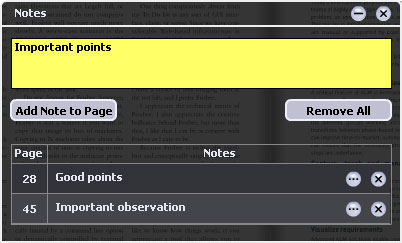
Figure 2: Enter text at the yellow box of the "Notes" dialog box
3. Click the "Add Note to Page" button. Your cursor will be changed to a "Notes" cursor (Figure 3).

Figure 3: "Notes" cursor
4. Place the Note on anywhere on the page by clicking once
on the page. You will see the Note icon  being placed
on the page.
being placed
on the page.
5. You can click on the Note icon on the page to see the contents in a pop-up Note (Figure 4). You can see the date and time the Note is added at the title bar of the pop-up. You can change the text at the pop-up Note as well.

Figure 4: Pop-up Note
To move the pop-up Note, click the title bar of the pop-up Note and drag it to a location on the page that you like and release. The location will be remembered. Next time when you click the Note icon on the page, the pop-up Note will appear at the remembered location.
To minimize the pop-up
Note back to a Note icon, click the "Minimize"
button at the upper-right corner of the pop-up Note.
To remove a Note,
click the "Remove"  button at the upper-right
corner of its pop-up Note. Its Note icon on the page and its corresponding
item in the "Notes" list (Figure 1) will be removed.
button at the upper-right
corner of its pop-up Note. Its Note icon on the page and its corresponding
item in the "Notes" list (Figure 1) will be removed.
Alternative way of removing a Note is clicking the "Remove"
button beside the corresponding Note in the "Notes"
list (Figure 1).
To look for a Note:
1. Click on the "Notes" button on the top toolbar. You will see the "Notes" list (Figure 1).
2. Click on one of the item in the list and the book will be flipped to the page. You will see the contents of the Note in a pop-up Note (Figure 4).
To edit a Note:
1. Click on the "Notes" button on the top toolbar. You will see the "Notes" list.
2. Click the "Edit"  button beside
corresponding Note in the "Notes" list (Figure 5). Change the
text of the Note. To save changes, click the "OK"
button beside
corresponding Note in the "Notes" list (Figure 5). Change the
text of the Note. To save changes, click the "OK"  button.

Figure 5: Edit a Note
Alternatively, to edit a Note:
1. Go to the page that has the Note. Click on the Note icon on the page to see the pop-up Note.
2. You can change the text at the pop-up Note.
To remove all Notes, click the "Remove All" button in the "Notes" dialog box.